Zero Line Settings & Feedback
Tune FPV feel, NV/thermal habits, and send clean bug reports from the lobby gear menu.
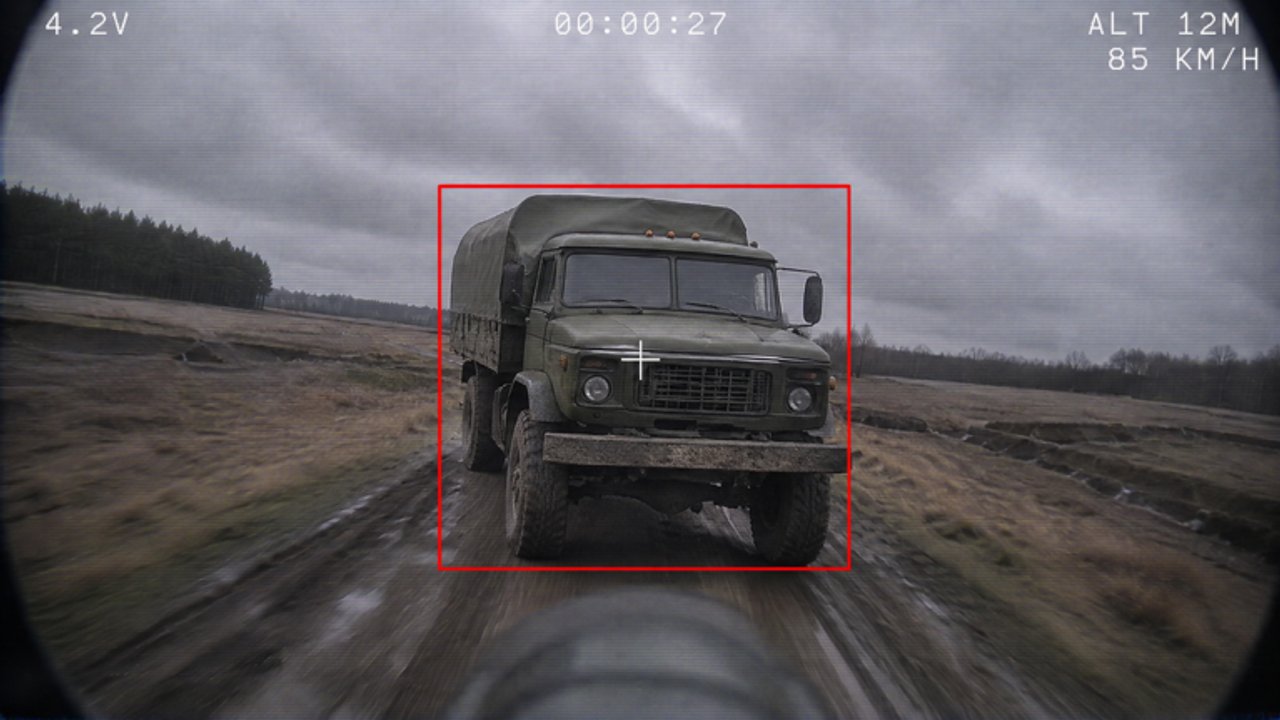
Most Zero Line deaths that feel like “bad drones” are actually settings problems: look sensitivity too high, dead zones wrong, thermal left on in daylight, or a bug that never reaches Pushpin Gaming. This guide covers the lobby Settings gear, platform tuning for PC / mobile / tablet / console, camera modes (normal, night vision, thermal), and how to file useful FEEDBACK / BUG reports.
Read Controls for input maps, then return here when something still feels off. Economy and upgrade questions belong in Cash Farming and the Upgrades Guide.
Open Settings the same way every session
- Join Zero Line from the official Roblox place.
- In the lobby, tap the gear icon (Settings).
- Skim graphics / audio / controls tabs before you launch a drone.
- Note the FEEDBACK / BUG entry — Pushpin Gaming routes studio notes through that path.
Do this once on every platform you play. Menu labels can move after patches; if a control migrates, check the Updates Hub and re-verify in the live client.
Sensitivity and dead zones (the FPV foundation)
FPV rewards small stick and mouse moves. If you constantly overshoot truck roofs or spin past players:
- Lower look / camera sensitivity until a gentle nudge tracks a moving target.
- Raise dead zones slightly on worn controllers so micro-drift stops yawing the drone.
- Avoid copying streamer sens blindly — their hardware and muscle memory differ.
- After any change, fly a figure-eight and one shallow dive before combat.
Platform notes:
- PC — mouse accel off if available; prefer raw feel for dive corrections.
- Mobile / tablet — larger screens help thermal contrast; consider a clip-on controller if thumbs fight on-screen sticks.
- Console — confirm look inversion early; save a “FPV” control scheme if the client supports profiles.
Camera modes: normal, night vision, thermal
Zero Line’s optical upgrades are not cosmetics. Treat modes as tools:
- Normal — default for bright maps and clean silhouettes.
- Night vision — low light; watch for bloom that hides thin targets.
- Thermal — heat contrast for trucks, players, and clutter; can hurt readability in bright chaos.
Habits that win:
- Switch modes deliberately at the start of a hunt, not mid-panic.
- Practice ID drills: spot a truck in normal, confirm in thermal, then dive.
- Upgrade antennas and sensors when picture softness at range costs you kills (upgrade tier list).
- If thermal feels “always on wrong,” that is a settings habit — reset to normal between lives.
Combat application lives in Combat Tactics. Settings only make those tactics readable.
Graphics and performance toggles
Stable frame pacing beats max glitter on FPV:
- Prefer steady FPS over ultra shadows if dive timing jitters.
- Reduce heavy post-effects if thermal UI already taxes your device.
- On mobile, close background apps before long sessions.
- After a Roblox client update, re-check that your graphics preset did not reset.
Performance drops often feel like “battery drain” or mushy props. Verify settings before spending cash on another propeller tier.
Audio cues worth keeping loud
Drone proximity, gunfire, and vehicle rumble help you prioritize targets when the sky is crowded. Keep master volume high enough to hear threats; duck music if it masks approach cues. Exact sliders vary by patch — trust what helps you react, not a copied screenshot.
FEEDBACK / BUG — how to write reports that get fixed
Pushpin Gaming asks players to use Settings → FEEDBACK / BUG. Useful reports include:
- Platform (PC / iOS / Android / console) and rough device class
- When it started (after join, after patch, during 2X XP, etc.)
- Steps to reproduce in three to five lines
- Expected vs actual result (mission cash missing, upgrade button dead, mode toggle stuck)
- Optional short clip link if the bug is visual
Bad reports: “game broken fix now” with no steps. Good reports help the studio ship cleaner Updates.
Settings checklist before ranked-feeling fights
- Sensitivity feels small and controllable
- Dead zones stop drift
- Camera mode chosen for map lighting
- Graphics stable enough for dive timing
- Group +20% cash already claimed (Cash Farming)
- FEEDBACK path confirmed if you hit a blocker
Related pages
- Controls — input maps for every platform
- Getting Started — first-hour UI tour
- Combat Tactics — NV/thermal in fights
- Players — multiplayer etiquette and group links
- Tools — warm-up checklists
Tune once, then fly. Settings are a force multiplier for every drone in the roster — treat them with the same care as your next battery upgrade.
Frequently Asked Questions
Quick answers to the most common Zero Line questions.
Where is the Zero Line Settings menu?
Open the gear icon in the lobby. The same area includes FEEDBACK / BUG for reports to Pushpin Gaming.
Why does my drone overshoot every dive?
Lower look sensitivity and raise controller dead zones slightly, then practice a figure-eight and shallow dive before combat.
When should I use thermal vs night vision?
Use thermal for heat contrast on cluttered or low-visibility targets, night vision for dark maps, and normal view when bright lighting already gives clean silhouettes.
How do I report a bug correctly?
Settings → FEEDBACK / BUG with platform, timing, short reproduction steps, and expected vs actual results.
Do graphics settings affect upgrades?
No. Graphics do not change battery stats, but unstable FPS can ruin dive timing so you waste drones and cash.